In order to create a new task, from the main menu navigate to Tasks and click on the New Task button.
- Subject – Enter the subject for the task in order to easily identify it.
- Hourly Rate – Set task hourly rate
- Start Date – Set the date when the task should be valid.
- Due Date – Set the due date when this task should be finished.
- Priority – Select task priority, Low, Medium, High, Urgent.
- Repeat Every – If you want to mark this task as recurring to be repeated based on the period selected, select recurring options accordingly to your needs.
- Related To – If you want to associate the task to a specific feature like project, customer, invoice etc.. you can choose from this list.
- Tags – Add task tags for easier identification, for example, bug, wordpress, etc…
- Task Description – Provide additional information for the task.
- Click Save
After you create the task, you will be able to add assignees and followers directly in the task modal from the right side.
When a follower or assignee is added to the task, the user will receive an email and bell notifications that he/she is added as assignee or follower to the task, if you need to adjust the email templates that are sent to the user, you can do this in Setup->Email Templates.
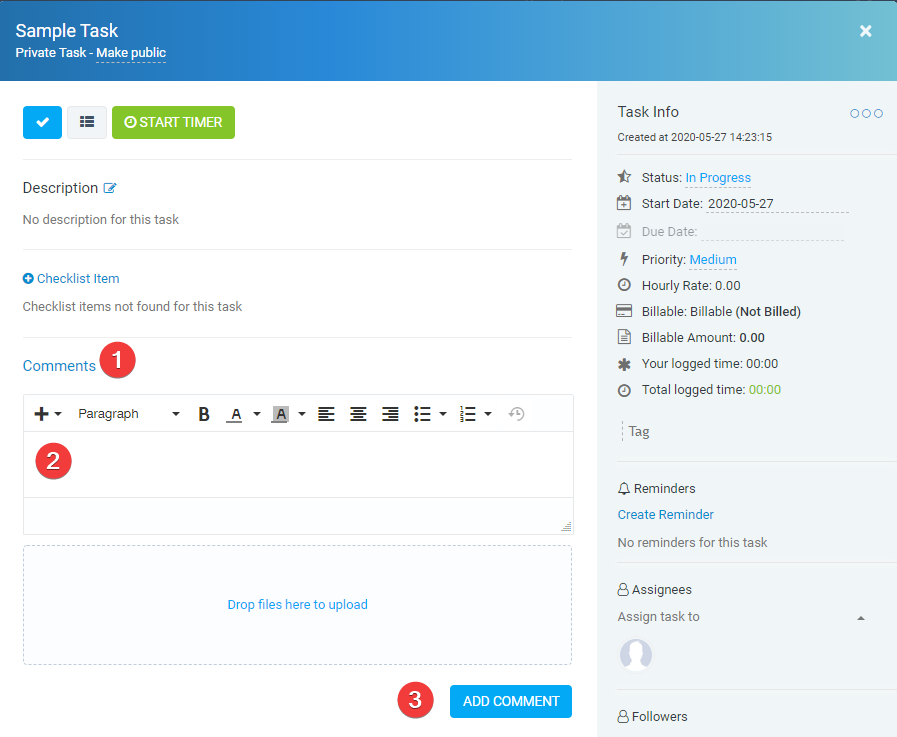
Task Comments
The users that are able to view the tasks, like creator, assignees, and followers, can comment on the task for further collaboration.