Create New Lead


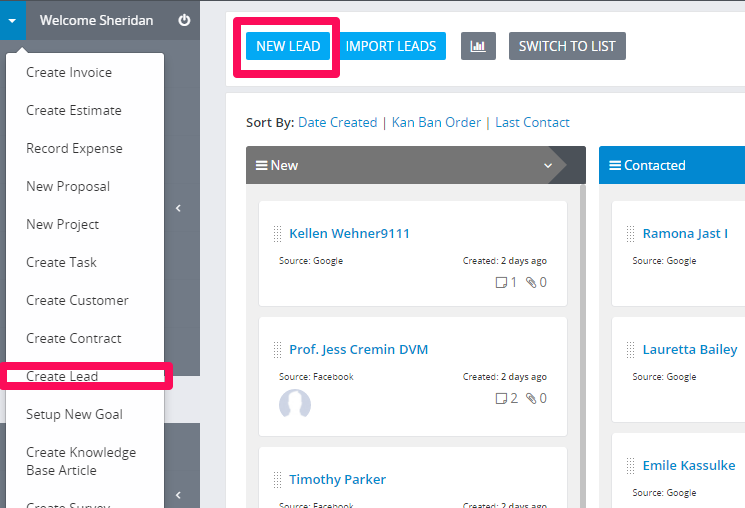
  • Navigate to leads view from the main menu on the left side and click on the button new lead.
  • You can also for quick approach add from the Quick Create menu by clicking on the top left caret and click New Lead, a modal will be open on whatever page you are inside the CRM.
  • If you mark the lead public will be visible to all staff members, otherwise will be visible to the assigned member, creator, and administrators. Additionally if you want some specific staff member to see all the leads you can add permissions view.
  • Leads can create all all staff members, staff members that are not admins will be able to see the leads on the following cases:
    • If lead is created from the staff member itself.
    • If lead is marked is public.
    • If lead is not created from staff member but this staff member is assigned to this lead.


If you got in touch the day when you add this lead don't uncheck the Contacted today field in the database will be automatically updated.

Did you find this article useful?


  • Import Leads From WordPress Contact Form 7

    The ability to import/capture leads from the most popular contact form (and any other customizable forms) for WordPress Contact Form 7 together with t...

  • Sending proposal to customer or lead

    We assume that you already have created the proposal. Click on the mail icon from the right side and popup with with the preview email template will b...

  • Leads email integratio

    Leads email integration is a powerful feature who allow you to integrate leads from your email address. You can set up email forwarder from any form y...

  • Generate Lead Report

    To view your leads report navigate to menu item Reports from the aside menu and click Leads. You can view the following reports: Weekly Sources M...

  • Convert Lead to Customer

    Convert Lead to a Customer Click on the lead and wait for the modal to be opened, on the top button click Convert to a customer. The convert to custom...